Don’t you just hate it when Webstorm underlines functions as unknown, because it doesn’t recognise them? It turns out it is pretty simple to fix if you know how and have a TypeScript (ts) file with definitions available.
UPDATE
It turns out there is a much easier way of adding the definitions.In File > Settings… > Languages & Frameworks > JavaScript > Libraries, click the button
Download..., select ‘jest’ from the list of available definitions, click the buttonDownload and Install. That’s it!Webstorm rules!
First we need to install the Jest TypeScript definitions.
npm install --save-dev @types/jest
Then we need to add them in Webstorm by adding it as JavaScript library in the Settings.
File > Settings... > Languages & Frameworks > JavaScript > Libraries
In the dialog click the Add.. button. The following dialog is opened.
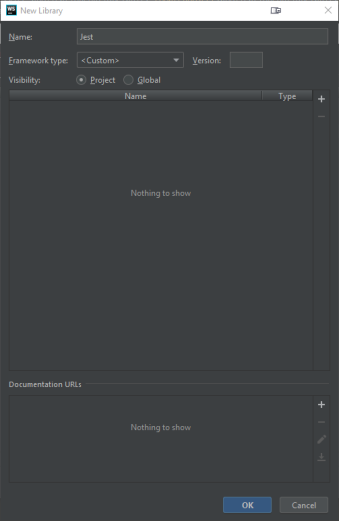
In the dialog enter the following information.
Name: Jest
Visibility: Project
Then click on the + button and select the option Attach files....
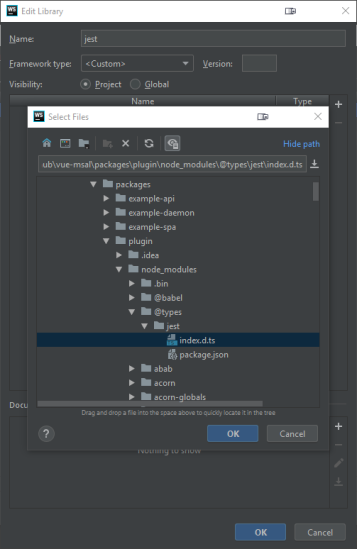
The Jest TypeScript definitions are installed in the node_modules directory under your project directory. The Jest TypeScript definitions are installed in @types\jest\index.d.ts. Select the file and click the OK button.
That’s it! Now Webstorm recognises Jest describe/it/expect. O yeah!
 Adventures of a space monkey