Enabling task tags in Eclipse

In Eclipse you can add a comment using Task Tags like // TODO <task> or // FIXME. This should add that comment as a task to the Tasks. By default the Task Tags are disabled. Enable them as follows:

  • Window > Preferences
  • Type Task Tags
  • Select that Task Tags under General > Editors > Structured Text Editors
  • Check Enable searching for Task Tags

Awsome website to test jsoup

I am busy learning Scala. As an exercise I am rebuilding a web scraper that I previously developed in Java. I am using jsoup to handle the actual extracting of data. I came across an excellent website that you can use to test jsoup. Try jsoup is an interactive demo for jsoup that allows you to see how it parses HTML into a DOM and test CSS selector queries.

It even lets you load your own web page. Just hit the Fetch URL button, paste the URL you want to test and have fun testing your CSS selectors.

Give it a try!

Making a directory available to Eclipse

I was busy adding logging to a project today and added a logback.xml file to a resource directory under src/main. When running the application the logback.xml file was not being picked up. It turns out the resource directory must be added to the build path. A quick reminder how to do this:

  • Right click on the project
  • Select Build Path | Configure Build Path…
  • Select the Source tab
  • Click Add Folder…
  • Check the check box of the folder to add
  • Click OK
  • Click OK

Everything should be working now.

What happend to refactoring in Scale IDE version 3.0.4?

Refactoring functionality [1] in the Scala IDE version 3.0.4 does not work. After a little bit of Googling I found the following website Scala Refactoring. It turns out this functionality is work in progress. However, the refactoring functionality is part of the latest milestone [2] of the Scale IDE. I have tried it and it works like a dream. Added bonus is the latest version of Scala IDE works with Eclipse Luna. Take it for a spin and see what you think.

[1] For example renaming all occurrences of a variable by selecting an occurrence and hitting Shift+Alt+R.

[2] Scala IDE version 4.0.0-M3.

Creating a servlet with Scala

I’m learning Scala at the moment. It is a wicked and very powerful language. I can recommend anyone who knows Java and is tiered of the huge amount of code that is needed to write even the most mundane functionality to give it a try. Anyway, on my quest to learn Scala I am using the book Scala in Action, which I can highly recommend. In chapter 2 a Java servlet is required. The book shows the code that is required for the servlet, but does not explain how to create a servlet. Not very complicated of course, but why create the servlet using Java when you can create a servlet using Scala? What a great exercise 🙂 So I gave it a try. This is the result. Enjoy. Continue reading

Converting a java.util.Map to scala.collections.Map

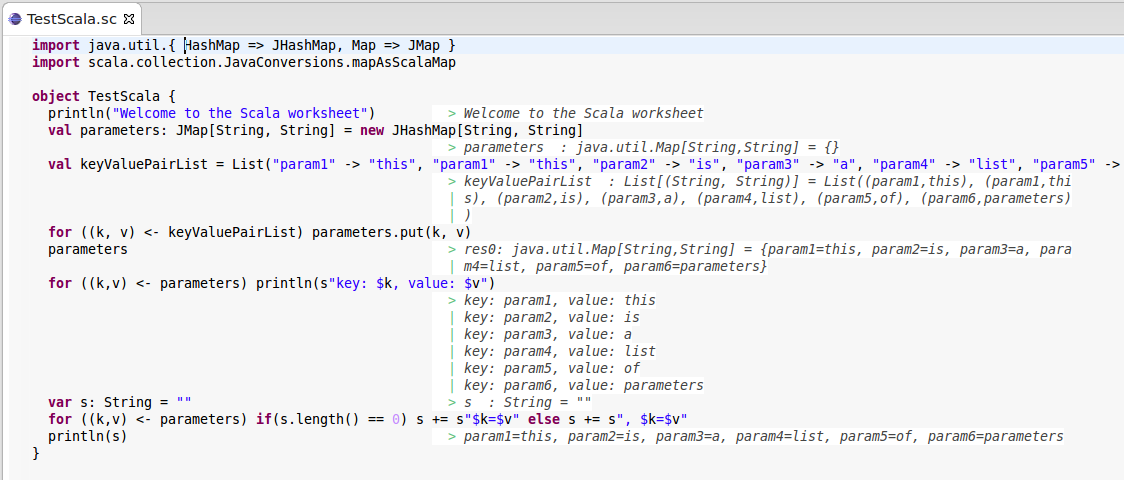
While converting an Java servlet example to Scala I ran into a little snag when I had to convert a java.util.Map to a concatenated String in Scala. Actually, I initially couldn’t figure out how to convert java.util.Map to scala.collections.Map. It turned out to be very simple. Here is the code example I came up with and tested with Scala Worksheet in Eclipse. The example is a little more elaborate, because I also needed to convert the Map to a concatenated string of key value pairs. Continue reading

Learning Scala the interactive way with Scala Worksheet in Eclipse

Learning Scala is fun, but at times like it can be a daunting and frustrating experience. Like learning any new language I guess. I have found using the Scala command line interpreter can help. It turns out the the Scala IDE for Eclipse also provides an interactive interpreter. To start an interactive interpreter create a Scala project and add a Scala Worksheet (File | New… | Scala Worksheet). Give the Scala Worksheet a name, for example TestScala, and start testing and learning. After typing a statement hit CTRL+S to save and the results of each statement are displayed at the end of each line. How easy is this?

Example of interactive learning with Scala Worksheet in Eclipse

Example of interactive learning with Scala Worksheet in Eclipse